Zigbee Setup
Open Zigbee to connect smart plugs, power strips and an optional temperature/humidity sensor. MycoBox supports up to six paired devices in total, including at most one Ambient sensor. A power strip counts as one device, regardless of its number of outputs.
Choose a separate output for each appliance. The outputs can belong to different plugs or strips.
Before choosing a device, check compatibility.
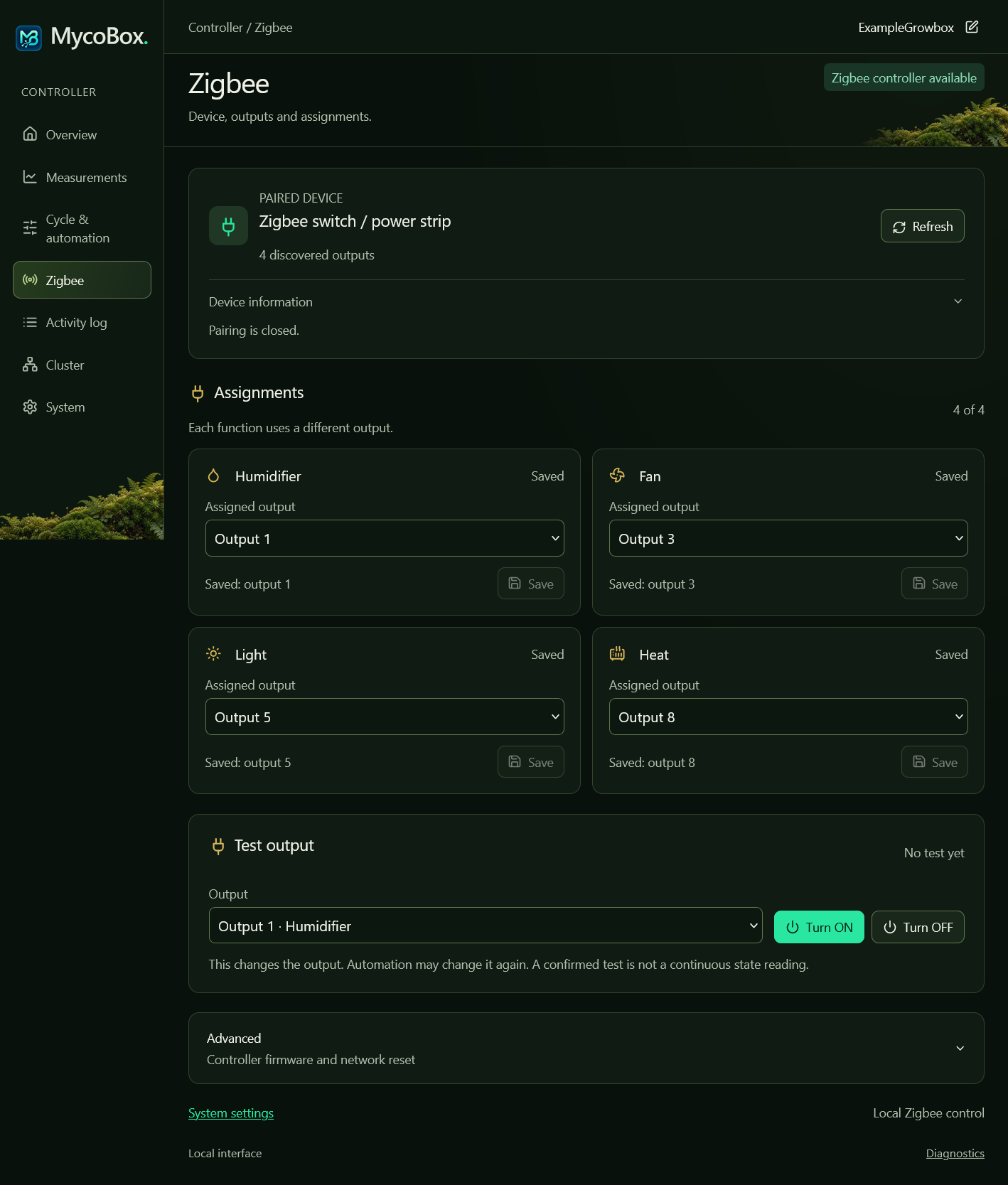
This screenshot shows an earlier interface. The current panel lists multiple devices and uses the controls described below.
Pairing a new Zigbee device
- Wait for the Zigbee status to show Connected.
- Select Pair device.
- Within two minutes, put your plug, strip or sensor into pairing mode using its instructions.
- Wait for MycoBox to recognize the device. Pairing closes automatically when it succeeds.
- Check the device in the list. Plugs and strips show their detected outputs; a sensor appears as Ambient.
Choose Cancel pairing to stop early. If pairing fails, use Troubleshooting.
Repeat for each device. To replace just one, remove that device; the others stay paired. MycoBox will not accept a seventh device or a second Ambient sensor.
Using an Ambient sensor
Pair a compatible sensor to compare conditions around your growing space with the Chamber readings. Both appear in Overview and Measurements. Automation uses the Chamber sensor connected to MycoBox, so adding or losing Ambient readings does not change the control source.
Battery-powered sensors may sleep between reports. Check the age of each reading; temperature and humidity can arrive separately. A reading becomes outdated after 30 minutes without a report. Missing or invalid values appear as a dash.
The sensor must provide both standard Zigbee temperature and humidity measurements. Check sensor compatibility before buying.
Understanding endpoints
An endpoint is the number MycoBox uses for a switchable output. The panel calls it Output.
These numbers may skip values or differ from the socket labels. For example, Output 3 might switch a socket labelled “2”.
MycoBox supports up to 32 detected outputs per device. Use the device name and detected output number together, and test each socket before assigning it.
Testing a device
Use a small lamp or another simple test load to identify sockets. Use the ON/OFF controls beside an output, or open Advanced → Manual output test:
- Select an Output, checking both its device name and number.
- Choose Turn ON, wait for confirmation and check which socket switched on.
- Choose Turn OFF and check that it stopped.
- Write down the mapping and repeat for the other outputs.
The test area shows the result of your last command. Automation can change an assigned output afterwards. If OFF is not confirmed, check the appliance and send OFF again.
If Turn ON is disabled, check for a reset awaiting assignment restoration or an unfinished H2 update.
Binding devices to MycoBox functions
Assign outputs to Humidifier, Fan, Light and Heat. Each role needs a different device-and-output combination. Roles can use different plugs and strips, and the same output number on two different devices is allowed. Leave unused roles as Not assigned.
Creating a binding
- Identify the socket and finish the test with it OFF.
- Check your growing mode and schedule.
- Select the device and output under the role’s Assigned output, then choose its Save button.
- Wait for the save confirmation and check the displayed assignment.
Save each role separately. MycoBox needs OFF confirmation from the old and new outputs before changing an assignment. Changing an assignment clears any manual On/Off choice for that role. Once saved, the role can start working immediately.
Removing a binding
Choose Not assigned, then the role’s Save button. MycoBox turns its old output OFF; the switch stays paired.
If the old output cannot be reached, restore its power or connection and retry. For an unknown result, choose Reload settings before saving again.
Removing one device
Choose Remove beside the device, then review and confirm the operation. MycoBox turns its outputs OFF, clears that device’s assignments and removes it from the network. Other devices and their assignments stay in place.
If OFF cannot be confirmed, restore the plug or strip’s power and connection before retrying. A sensor has no outputs to turn off. Removing the Ambient sensor also clears its measurement history.
To keep a device paired and remove only one role, use Removing a binding.
Resetting the Zigbee network
A network reset removes all paired devices and clears their assignments. Use it to start the whole Zigbee setup again. To replace one device, use Remove instead.
- Open Zigbee → Advanced → Reset Zigbee network.
- Choose Reset network.
- Wait while MycoBox turns affected outputs OFF and resets the network.
- Follow Restoring assignments after maintenance.
If an output does not confirm OFF, restore its connection before retrying. If the result is unknown, use Reload settings to check what changed.
Automation stays paused until an assignment is restored, even after a restart. To remove just one role, use Removing a binding instead. A Main Controller factory reset is a separate operation.
Restoring assignments after maintenance
After a network reset or an older full-image update that cleared assignments, the first successful assignment save releases the maintenance pause. Manual ON tests become available after that save.
- Disconnect controlled appliances from the sockets, or use simple test loads. Saving the first assignment can start automation.
- Check whether a plug or strip is paired. If not, pair it and wait for its outputs.
- Choose a detected output for one role and Save. Use your recorded socket mapping if you have one; leaving every role Not assigned keeps the pause active.
- Test the sockets and correct that first assignment if needed.
- Assign the remaining roles, reconnect the appliances to the matching sockets and check operation.
For an unfinished current H2 update, use the update completion steps instead.
Using multi-outlet power strips
One strip with four independent outputs can handle all four roles. For example:
| Detected output | Role |
|---|---|
| Output 1 | Humidifier |
| Output 3 | Fan |
| Output 5 | Light |
| Output 8 | Heat |
Use the numbers you found when testing your own strip.
Updates and problem reports
For H2 firmware, open Advanced → Zigbee Controller · ESP32-H2 and follow Firmware updates.
A compatible update through the panel preserves paired devices and assignments. The first upgrade from the older single-device firmware to six-device support requires a USB update of both controllers, a fresh configuration and pairing again. Follow the release instructions for that transition.
If pairing, tests or assignment saves fail, start with Zigbee troubleshooting. Keep the displayed error and Technical details to include if you ask for help.