Firmware Updates
MycoBox has two controllers: Main Controller (S3) and Zigbee Controller (H2). Each uses its own update file.
Screenshots show an earlier interface. Follow the current file names and steps below.
Before updating
- Check your installed versions, then open Releases and read the instructions for the version you want to install.
- Save pending cycle edits and download a settings backup.
- Keep MycoBox powered, stay nearby and leave the update page open until it finishes.
For compatible updates through the web panel, install S3 first, then H2. Update only the controllers listed in the release instructions. If you are moving from older firmware, check the section below before uploading a file.
First upgrade to six-device firmware
v1.669.EN adds support for six Zigbee devices, including an optional Ambient sensor. The first upgrade from v1.666.EN or earlier needs the full USB setup/recovery procedure for both controllers. The older web panel cannot perform this change.
Record your Wi-Fi, account, cycle and output assignments, and download a settings backup before starting. Turn all outputs OFF. This upgrade clears the old configuration: set up MycoBox again, pair the Zigbee devices and check every assignment. Follow the release instructions or ask the maintainer for the USB procedure for your device.
Once both controllers use compatible six-device firmware, later compatible OTA updates keep settings, pairing and assignments.
Firmware files
Download the files from official MycoBox Releases.
| File | Choose it for |
|---|---|
MycoBox-S3-OTA-vX.XXX.EN.bin |
Main Controller update in the web panel |
MycoBox-H2-OTA-vX.XXX.EN.bin |
Zigbee Controller update in the web panel |
MycoBox-S3-Recovery-vX.XXX.EN.bin |
Full Main Controller image for USB setup/recovery; replaces saved settings |
MycoBox-H2-Recovery-vX.XXX.EN.bin |
Full Zigbee Controller image for USB setup/recovery; replaces pairing data |
MycoBox-H2-vX.XXX.EN.bin in older releases |
The older full-image procedure described in that release |
SHA256SUMS.txt |
Checking that a download is complete and unchanged |
For the web panel, choose the OTA file for the correct controller. Recovery files use a separate USB procedure and must not be uploaded to the panel. Published firmware is encrypted and intended for compatible MycoBox hardware.
Firmware file integrity
To check a download, compare its SHA-256 value with the entry in SHA256SUMS.txt. In PowerShell, replace the filename below with yours:
Get-FileHash -Algorithm SHA256 '.\MycoBox-S3-OTA-v1.669.EN.bin'
If the values differ, download the file again.
What happens to settings?
| Update or recovery | What happens |
|---|---|
| Compatible Main Controller web update | Saved settings, pairing and output assignments stay in place. Save cycle edits before updating. |
| Compatible Zigbee Controller OTA update | Pairing and output assignments stay in place. |
| Older full-image H2 update or full H2 recovery | Pair the devices again, then restore and check output assignments. |
| Full S3 recovery over USB | Set up the Main Controller again. |
The first upgrade to six-device firmware is a separate migration and clears the old configuration. Before installing an older version, check that it can use your current settings.
After recovery, a settings backup helps restore configuration. A backup does not recreate Zigbee pairing. If pairing was cleared, pair the devices and restore output assignments first.
Version verification
You can find the installed versions here:
| Controller | Where to look |
|---|---|
| Main Controller | System → Main Controller firmware → Version / Build |
| Zigbee Controller | Zigbee → Advanced → Firmware / Build |
Check these again after updating.
Updating the Main Controller
Open System → Main Controller firmware, or use the Updates shortcut.
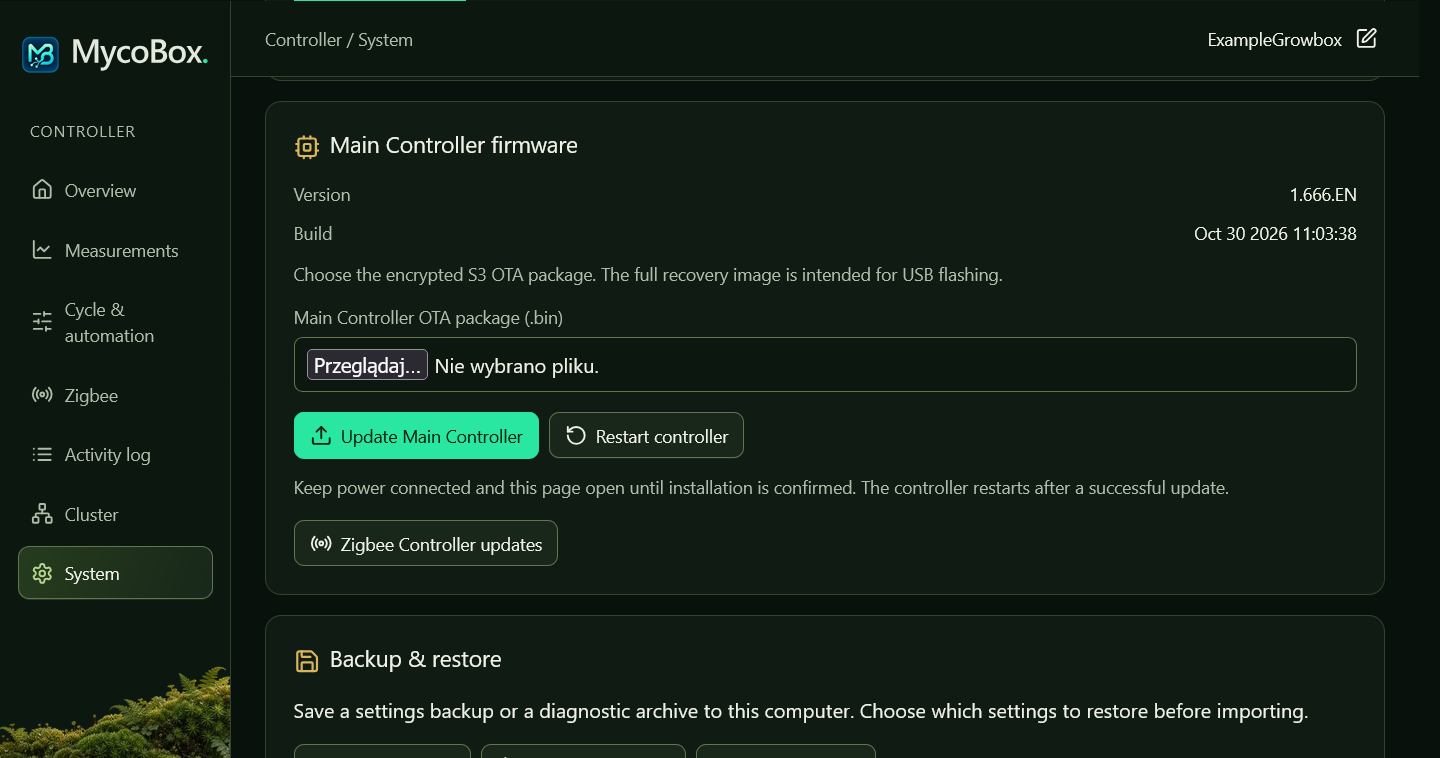
- In Main Controller OTA package (.bin), select the S3-OTA file.
- Choose Update Main Controller and confirm.
- Wait for installation to finish. Reaching 100% upload is one step; keep power connected while MycoBox checks and installs the file.
- Wait for the automatic restart, then reconnect if needed.
- Check the new version, saved settings, fresh readings and equipment operation.
If the Main Controller update fails
If the panel still opens, read the error, check the file and its checksum, then try again with a stable connection.
For Update result unknown, reconnect and check the installed version before uploading again. If MycoBox no longer starts normally, follow Recovery firmware.
Updating the Zigbee Controller
Open Zigbee → Advanced → Zigbee Controller · ESP32-H2, or use Zigbee Controller updates in System.
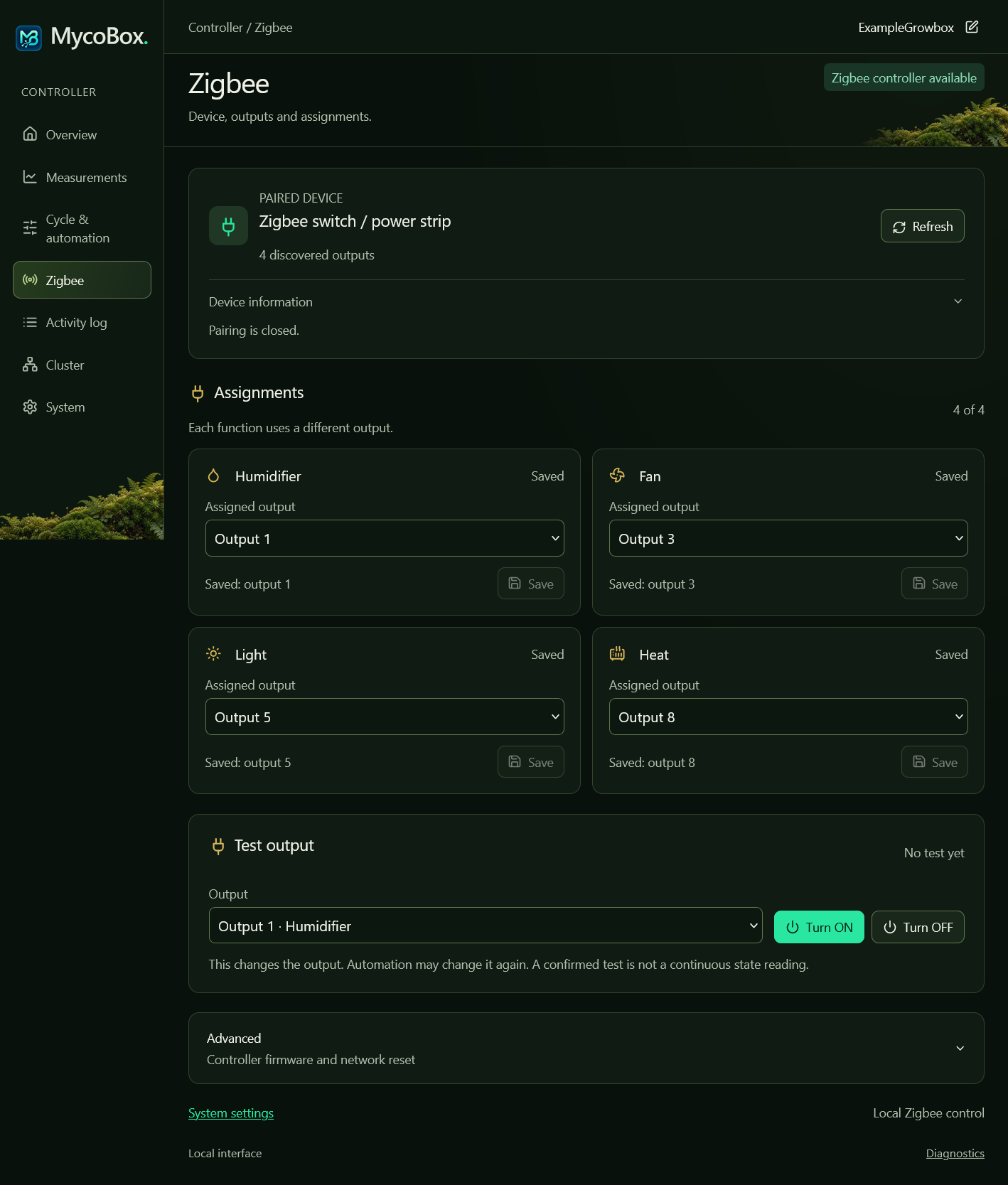
H2 update procedure
- Install the required S3 update first. Keep MycoBox and all paired plugs and strips powered and within range.
- In Zigbee Controller OTA package (.bin), select the H2-OTA file.
- Choose Update Zigbee Controller and confirm. MycoBox turns the affected outputs OFF before installing.
- Wait for the upload, restart and final checks. MycoBox checks the saved device list and confirms that switchable outputs are OFF. Automation resumes when those checks finish.
- Check the new version, assignments and equipment operation.
Until the update finishes, MycoBox pauses automation, ON commands, assignment changes, pairing and network reset. Restarting the Main Controller keeps this pause in place.
The Ambient sensor stays paired. Waiting for its next measurement does not delay update completion.
If a separate network reset had already cleared assignments, restore them after the update.
If an H2 update is interrupted
Reconnect, open Zigbee and read the update status.
- Waiting for device or output checks: restore power and range to the original plugs and strips, then allow verification to finish. A missing device does not erase its assignments.
- Upload interrupted: when the updater allows a retry, upload the complete matching H2-OTA file again. A prepared update can be retried after a Main Controller restart, even if the Zigbee Controller is not responding.
- Retry blocked or repeated verification failure: keep the error message and contact the maintainer about service recovery.
An interrupted H2 installation cannot return to its previous firmware automatically. Keep the saved settings and network intact while resolving it. Do not reset the Zigbee network or clear the maintenance state to bypass the checks.
Recovery firmware
Recovery is for a controller that cannot be restored through its normal update page. Contact the maintainer with your controller model, last known versions and the error shown.
Use the recovery procedure provided for your device. Afterwards, follow initial setup, settings restore and Zigbee restore as needed. The table above shows what each recovery replaces.