Web interface
Open MycoBox’s local address in your browser and sign in. The panel works without internet. For your first connection, follow Getting started.
Screenshots show an earlier interface. The instructions below describe the current controls.
Navigation
| Page | Use it to… |
|---|---|
| Overview | See current conditions, equipment states and the active cycle |
| Measurements | Explore temperature, humidity and equipment activity |
| Cycle & automation | Set growing modes and the daily schedule |
| Zigbee | Pair devices, test outputs and assign equipment |
| Activity log | Review recent equipment events |
| Cluster | Manage several MycoBox controllers |
| System | Change connection and account settings, back up or update MycoBox |
You can open Diagnostics from System or the page footer.
Overview and Growbox
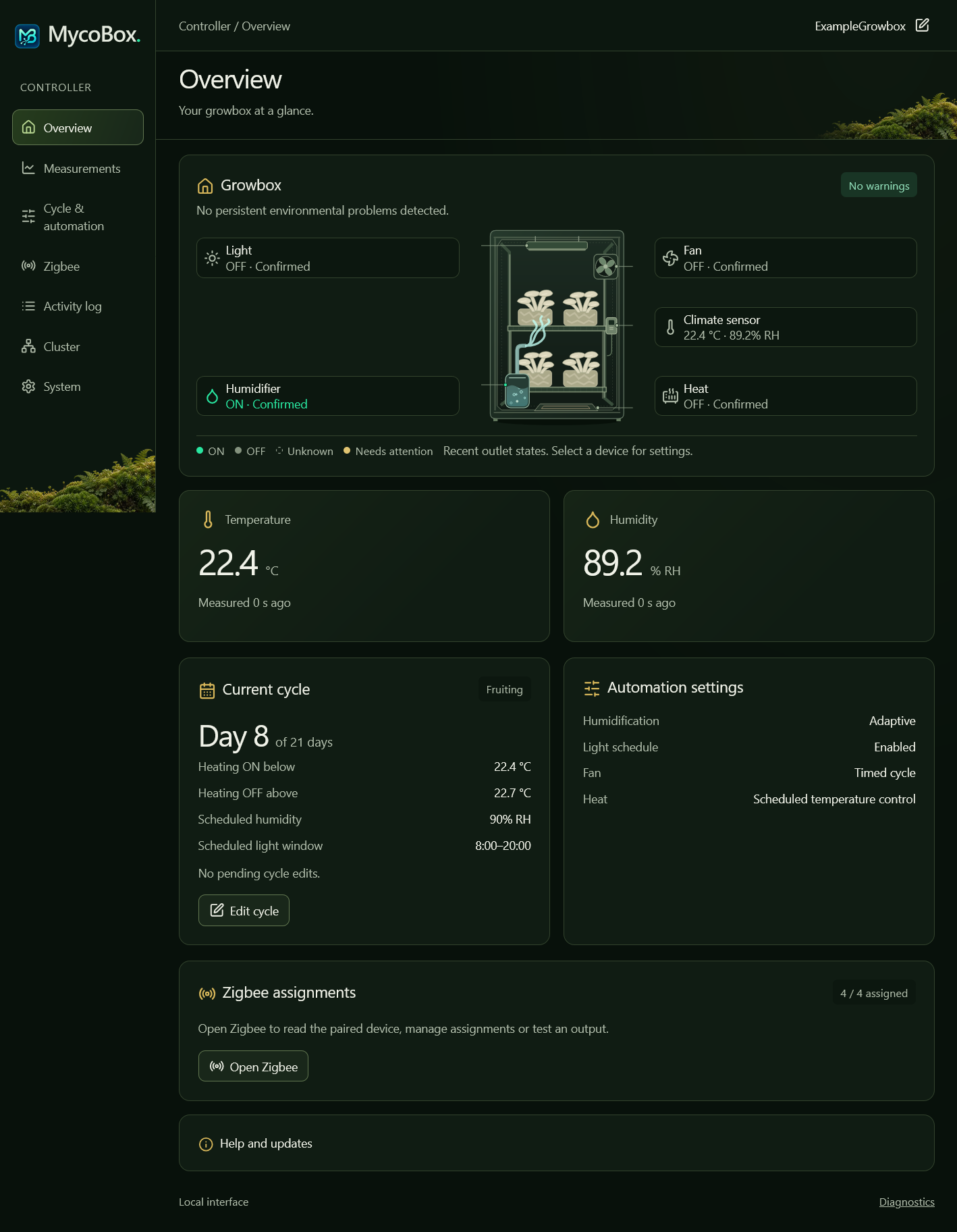
The Growbox diagram shows Light, Fan, Humidifier, Heat and the climate sensor. Select a device to open its settings. Select the sensor to open Measurements, or an unassigned output to set it up in Zigbee.
Chamber shows the built-in SHT41 readings used by automation. If you pair a compatible Zigbee temperature and humidity sensor, Ambient shows the conditions around the growing space. Ambient readings are for comparison and do not control equipment.
| Status | Meaning |
|---|---|
| ON / OFF · Confirmed | MycoBox recently confirmed the output’s state |
| Unknown | MycoBox is waiting for a fresh confirmation |
| Not assigned | Choose an output for this function in Zigbee |
| Assignment conflict | Correct the assignments in Zigbee |
| Paused · Maintenance | Open Zigbee to finish the maintenance steps |
| Needs attention | Open the message for suggested checks |
If an output is ON but the appliance produces no airflow, mist or heat, check the appliance itself.
The Current cycle card shows the active day, heating thresholds, humidity target and light window. The device cards show the selected control modes and confirmed output states. Check the Light status for whether it is ON now; the light window shows its schedule.
Warnings
Open a warning beside a device to see what MycoBox noticed and what to check. Monitoring continues when you close the browser.
| Condition | When a warning appears |
|---|---|
| Temperature or humidity outside the monitoring band | After 30 minutes |
| Missing readings or no sustained humidity response in Adaptive | After 15 minutes |
| Conditions return to normal | The warning clears after five stable minutes |
Sensor cooling, maintenance or missing data can pause an assessment. Assessment paused and Previously observed mean MycoBox is waiting for fresh readings.
Warnings and observations clear after a restart. They appear in the local panel; MycoBox does not send notifications.
Measurements

Chamber readings normally refresh every five seconds. Ambient readings arrive when the paired sensor reports them, so check the age beside each reading.
Each measurement history holds up to 432 readings, spaced ten minutes apart: about 72 hours when complete. Select a point to inspect it, or open Readings as text. Chamber lines may join points across a gap; the text view shows which readings were recorded. Missing Ambient readings leave gaps in its line.
The Humidifier, Fan, Heat and Sensor heater tracks help you compare activity with changes in temperature and humidity. Use each category button to show or hide its activity. The Ambient button shows or hides the dashed Ambient line on both charts; Chamber uses a solid line. These choices stay in your browser and do not change automation or stop recording.
Use Ctrl + scroll or pinch to zoom, and drag sideways to move through history. Both charts share the same time range. History refreshes every 30 seconds without resetting your chosen view.
History starts again after a restart. As it fills, older records are replaced. To keep a copy of Chamber history, export diagnostics before restarting. The export does not include Ambient history.
Sensor heating and cooling
The SHT41 occasionally heats itself during prolonged high humidity. Sensor heater active is followed by Sensor cooling after heating, which normally lasts three minutes.
Chamber readings pause during this process and return afterwards. Heating and Adaptive humidification pause when usable Chamber readings are unavailable. Sensor heating is automatic and separate from the Heat output that warms your growing space.
If fresh readings do not return, follow Missing sensor values.
Cycle and automation
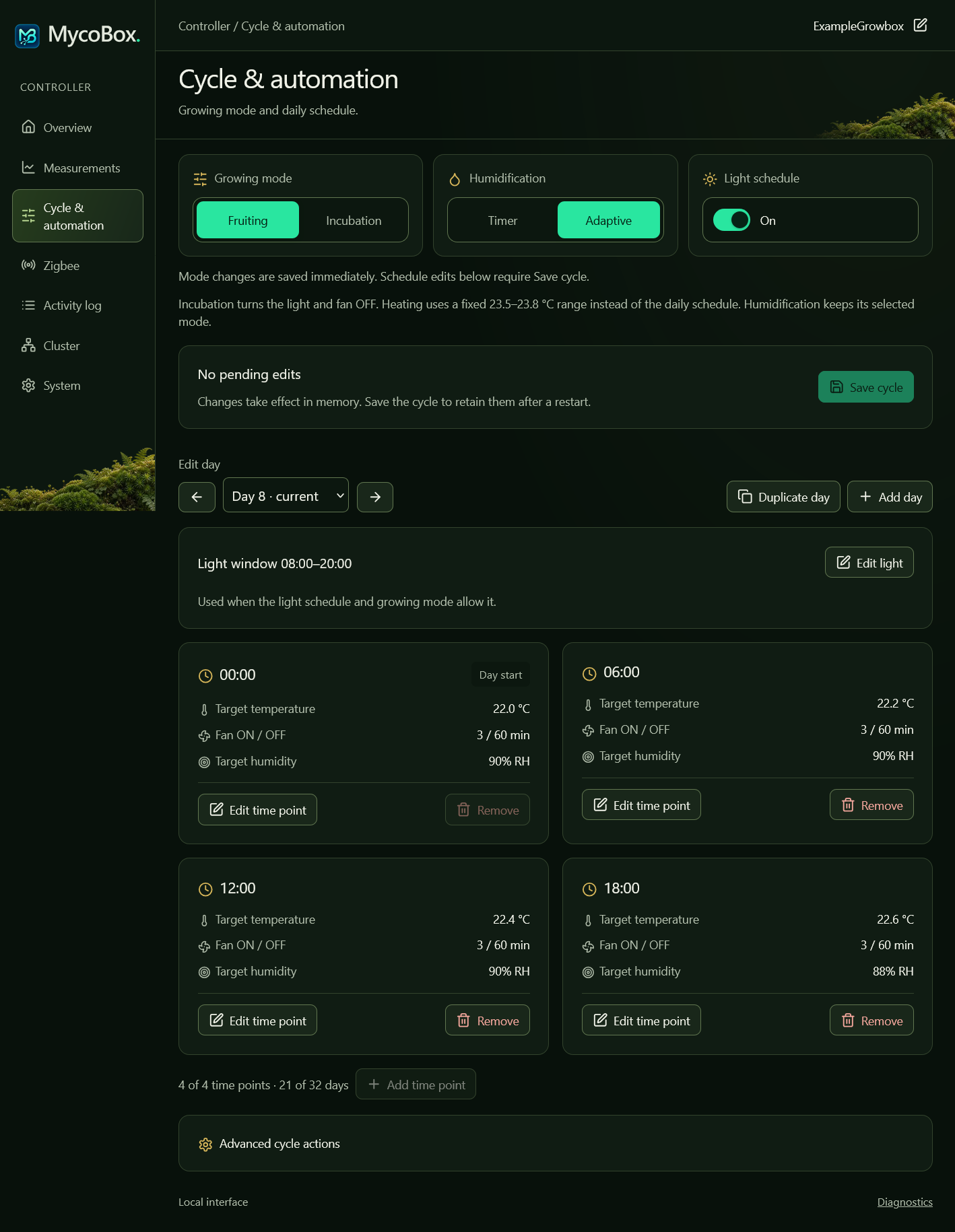
Create up to 32 days, each with up to four time points. The first point starts at 00:00. Each point sets temperature, fan timing and humidification for that part of the day.
Days advance from the cycle start time. After the last day, the schedule repeats from Day 1.
Choose the modes
| Setting | What it does |
|---|---|
| Incubation → None | Uses the normal growing schedule |
| Incubation → Incubation | Uses a fixed heating range of 23.5–23.8 °C; Light, Fan and Humidifier stay OFF when set to Schedule |
| Timer | Runs the humidifier for the chosen ON/OFF periods |
| Adaptive | Adjusts humidification pulses using humidity readings and your target |
Changing incubation keeps your chosen humidification mode and does not pause the cycle’s days. Timer uses the chosen ON/OFF periods rather than regulating to the humidity target; the target remains a reference for monitoring.
Outside incubation, heating starts below the temperature target and stops above target + 0.3 °C. Between these thresholds, it keeps its previous state. With an unusable reading or a temperature below 5 °C, MycoBox requests heating OFF. Use separate frost protection if needed.
Adaptive learns how your humidifier and enclosure respond. It waits at least five minutes between starts, runs each pulse for no more than 120 seconds, and stops a pulse if Chamber readings become unavailable. After a restart, it waits five minutes before the first run and learns the response again.
Incubation and humidification mode changes save immediately. Save schedule edits separately as described below.
Control devices manually
Under Device control, choose a mode separately for Light, Fan and Humidifier:
| Mode | What it does |
|---|---|
| Schedule | Uses the growing schedule and incubation setting |
| On | Keeps the device ON, including during incubation |
| Off | Keeps the device OFF |
Manual On and Off take priority over incubation and the schedule. They have no automatic timer: choose Schedule to return to automation. A controller restart returns all three devices to Schedule; changing an assignment also returns that function to Schedule. Heating always remains automatic.
Manual choices are temporary and are not saved in backups or copied through Cluster. Configuration problems and an unfinished Zigbee Controller update can still block ON. Check the confirmed output state on Overview after changing a mode.
Edit and save a schedule
- Select a day under Edit day.
- Choose Edit time point or Add time point, then set the time and conditions.
- Choose Apply changes. Cancelling the form discards its edits.
- Use Edit light to set the daily light window, with the ON time earlier than the OFF time.
- Review the schedule and choose Save cycle.
Apply changes updates the running schedule. Save cycle keeps it after a restart.
Use Duplicate day to copy a day, or Add day to extend the cycle. In Advanced cycle actions, you can remove a day or use Restart cycle to begin again with the same schedule. Save afterwards to keep the new start time.
If a save reports an unknown result, reload the configuration and check it before editing again.
Zigbee
Follow Zigbee setup to pair plugs or power strips, identify their outputs, assign equipment or add an Ambient sensor. Use Firmware updates to update the Zigbee Controller.
Activity log
Select Heat, Light, Fan or Humidifier to see recent events. The page shows up to 50 events; choose Show up to 200 events for more.
Each entry has a time, description and message. Select a column heading to sort the entries. Technical details provides extra information for troubleshooting.
For State not confirmed, start with Zigbee connection checks.
Cluster
Use Cluster to find other MycoBox controllers on the same Wi-Fi network. Select Refresh discovery to update the list. Controllers receiving a group action must use the same administrator login and password as the source.
| Action | What it changes on the selected recipients |
|---|---|
| Copy settings… | Saves the incubation setting and humidification mode |
| Copy cycle… | Saves and activates the complete schedule and cycle start time, including active unsaved edits from the source |
| Restart recipients… | Restarts the controllers; their unsaved cycle edits are lost |
Review the recipient list before confirming. The source controller stays unchanged. If the discovered list changes, refresh it and review the action again.
Cycle copying keeps each recipient’s Zigbee assignments. Check that its equipment suits the copied schedule.
Manual Schedule / On / Off choices are not copied.
After a group action, check the result for each recipient. If only some completed it, inspect the others before retrying.
System
Save pending cycle edits before a change that restarts MycoBox.
| I want to… | Guide |
|---|---|
| Change Wi-Fi, time, account or controller name | Getting started |
| Install firmware | Firmware updates |
| Save or restore settings | Backup and restore |
| Investigate a problem | Troubleshooting |